



GPT Image 2.6 SVG Generation: Create Editable Icons and Illustrations
Learn how GPT Image 2.6 generates SVG files, write clearer vector prompts, check editability, and budget for reference-image and SVG authoring costs.
Read article
 GPT Image 2.6
Describe your idea or start with a photo. Create visuals with GPT Image 2.6, then give clear editing instructions and visual guidance to shape the details.
AI GenerationAI Image Editing Configuration
Configure your model, prompt, and output
Image Preview


 GPT Image 2.6
Find a visual direction for your next campaign. Preview a template, make the prompt your own, and create.
From the blog
Learn how GPT Image 2.6 generates SVG files, write clearer vector prompts, check editability, and budget for reference-image and SVG authoring costs.
Read article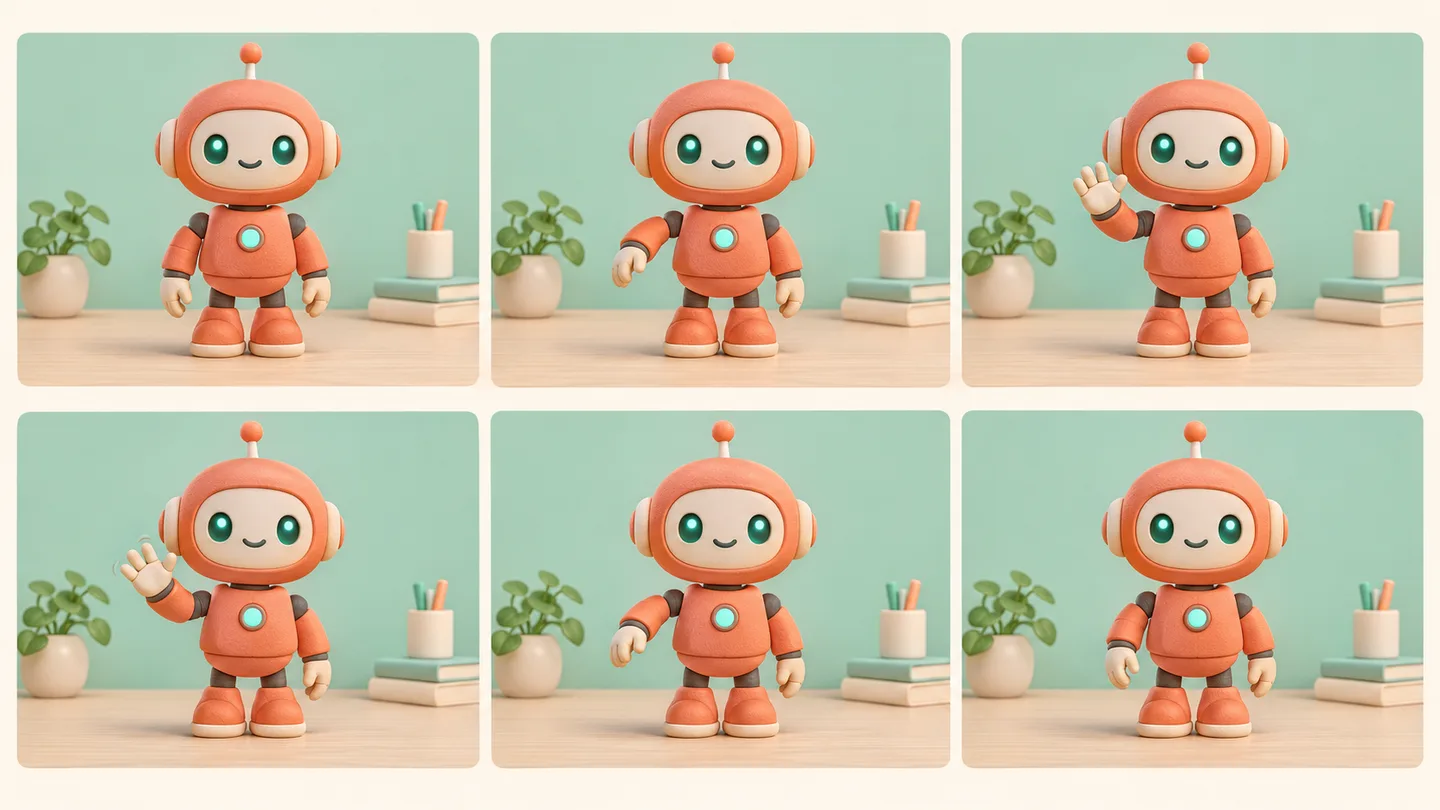
Learn GPT Image 2.6 GIF generation: plan a looping action, set frame count and timing, save the API output, and fix visible jumps between cycles.
Read article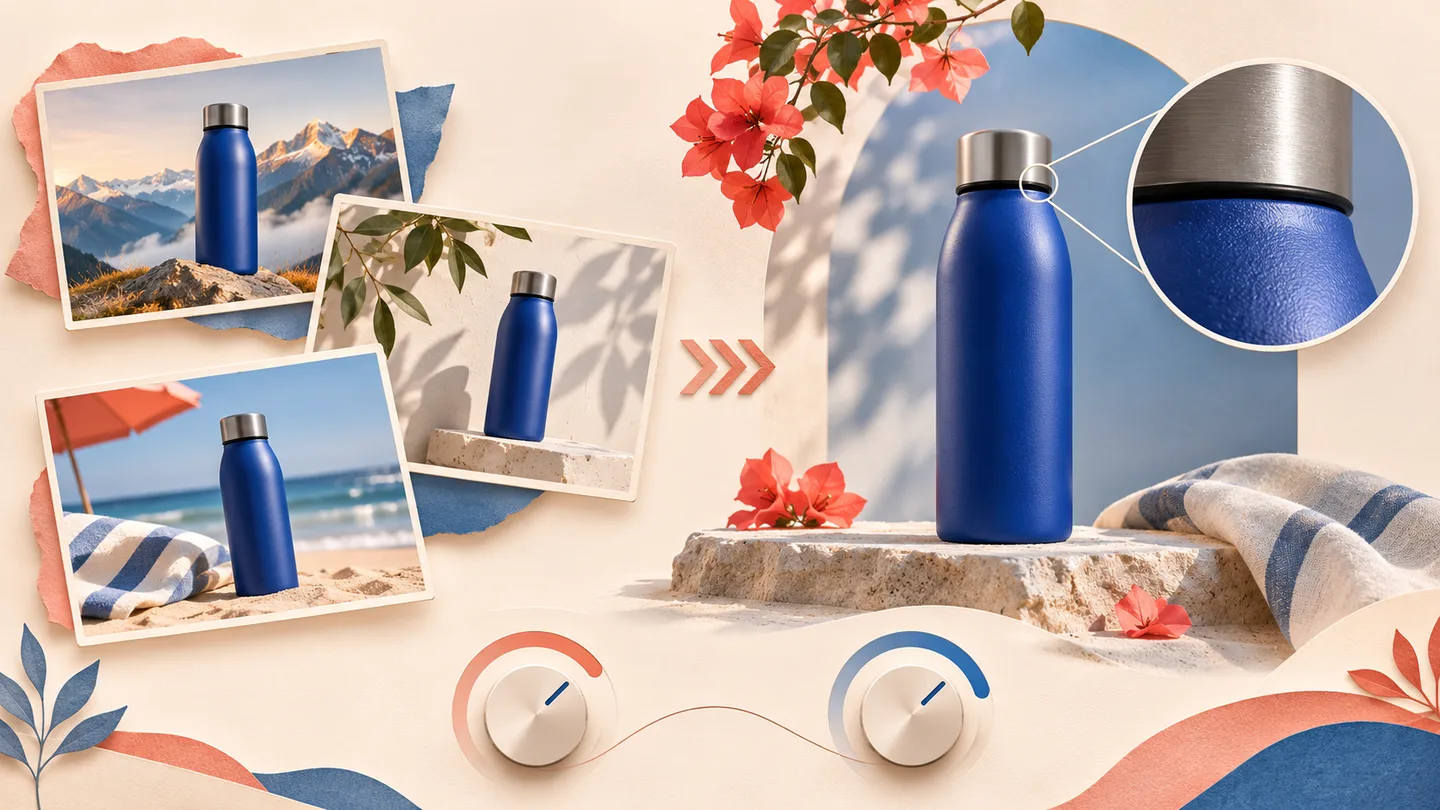
Compare GPT Image 2.6 Flare and Sunburst for fast drafts, detailed edits, and production work. Learn how quality, complexity, and cost affect your choice.
Read article
Give GPT Image 2.6 a reference image and a clear editing brief. Describe the change, identify its location, and review the result against your original.
Working on a single project, or creating every week? Choose how you pay, see the generation cost, and know how failed tasks are handled.
Buy a one-time credit pack for occasional projects, or choose a subscription for ongoing work. Credit packs do not renew automatically, so you can pay for another pack when you need it.
Compare Plans and Credit PacksThe editor displays the credits required for your selected model and output settings. Check the cost before submitting a prompt or trying another version, so you can decide whether it fits your remaining balance.
Check Generation CostsCredits deducted for a generation task are returned automatically once the task is confirmed as failed. A completed result still uses credits if you decide to generate another version. Contact support if a failed task's refund remains unresolved.
Get Help With a Failed TaskUse GPT Image 2.6 for image edits, then open a separate tool for enlargement, cutouts, prompt descriptions, or video. Download and upload between tools as needed.
Start with a photo and describe a change to its objects, setting, or visual style. Give a specific instruction and compare the resulting image with your reference.
Edit an ImageMarkup guidance combines an image with visual annotations to help communicate an edit. Use a clear target and written instruction; inspect nearby details after editing.
Explore Image EditingNeed a larger visual for a product page or layout? Upload your file and choose a 2K, 4K, or 8K target. Export as JPEG, PNG, or WebP and check the enlarged details before use.
Upscale a PhotoNeed a cutout instead of a new scene? Isolate the subject from its background and download a transparent PNG for product listings, presentations, or a new design.
Remove a BackgroundHave a reference but do not know how to describe it? Convert it into a text prompt you can edit for your next generation. It describes visible content; it does not recover the original prompt.
Extract a PromptWant to add motion to a finished composition? Upload it in the video generator and describe what should move. Video models have their own duration, resolution, and credit settings.
Animate a PhotoHow the workflow works, which settings to choose, and what to check before spending credits.
GPT Image 2.6 brings image creation and editing into a prompt-led workflow. Describe the visual you want, or provide a photo and explain what to change. Visual guidance helps communicate the location and intent of an edit.
Use an existing product shot, portrait, poster, or illustration as the starting point for an editing brief. Describe the change and the details to preserve. Review the result rather than assuming that every detail outside the edit remains identical.
Generation time varies with the request and service load. Wait for the task status to finish before downloading; no fixed completion time is guaranteed.
Start with a clear image. Describe one change, identify where it belongs, and name important details to retain. Check the settings and credit cost before submitting, then compare the result with the original before downloading.
GPT Image 2.6 supports markup guidance: a transparent PNG overlay helps identify the intended edit on an image. Pair visual guidance with a written instruction. An annotation guides the request; it does not guarantee an exact result.
Name the object, location, and requested change. Add a short list of details to preserve. For example: change the mug to forest green, keep the handle shape, and retain the original framing. Review the output against each instruction.
Do not assume pixel-for-pixel preservation. Image edits can affect nearby details, lighting, or composition. Keep the original file and compare important areas after each edit, especially faces, product labels, and text.
Review the size, quality, and credit cost displayed for your selected model before submitting. Output options depend on the model and service. Use the separate image upscaler if you need to enlarge a finished file.
New users receive 16 starter credits on image26.com. Each generation spends credits at the cost shown for your selected settings. This is a limited trial, not unlimited free generation. Paid plans and one-time credit packs are available when you need more credits.
Provide the exact replacement words in quotation marks and identify the line or area to change. Explain the intended placement and style. Inspect spelling, punctuation, and small lettering in the downloaded image before publishing.
The documented markup input is a transparent PNG overlay matching the source image's dimensions after orientation. It must contain transparent pixels and cannot be combined with a mask in the same request. Keep annotations focused on the intended change.
Paid plans on image26.com include commercial use as described in Pricing. Follow our Terms of Service and any applicable model terms, and make sure you have the necessary rights to uploaded photos, logos, and other material. Commercial use does not guarantee exclusivity or freedom from third-party claims.
Open the image workspace at the top of the homepage and sign in. Choose the editing option, add your image, and describe the change. Review the selected model, settings, and credit cost before submitting a task.
Start with a reference when you want to revise an existing photo or design. Describe the change and what should stay consistent. For a new visual, begin with a written brief covering the scene, style, and composition.
Use the same source image and editing brief. Compare the requested change, preserved details, text, framing, and displayed cost. Choose the result that fits your task and check important details at full size.
Choose the perfect plan for your creative needs.
Perfect for trying our GPT Image 2.6 image generator
Great for exploring!
For serious creators who need professional features
✓ Cancel anytime — no questions asked
For studios and teams creating at scale
✓ Cancel anytime — no questions asked
With a reference video, credits are charged on output duration plus the total reference-video duration.
Start with your image and a clear idea. Give GPT Image 2.6 the change you want, review the details, and keep the version that works for your project.
Have feedback, questions, or suggestions about GPT Image 2.6? We would love to hear from you.