

GPT Image 2.6 GIF Generation: Create a Seamless Loop
GPT Image 2.6 can return an animated GIF through the OpenAI Image API. To make the result feel seamless, start with a small action that naturally returns to its starting state: a mascot waves and lowers its hand, a character blinks, or a hanging ornament gently sways back.
The challenge is the transition from the last frame to the first. A clip can look good once and still reveal a jump every time it repeats. This guide uses an original robot greeting to explain how to plan the motion, request a GIF, and review that transition.
If you are still exploring the character’s appearance, the Image26 image workspace can help you develop a static concept. The GIF workflow below uses the OpenAI API; it does not assume that the Image26 workspace currently offers GIF export.
OpenAI introduced GIF creation with Images 2.6, describing uses such as animated mascots, social reactions, and movement studies. Read the release announcement. The request example below follows the documentation but has not been run as a live generation test for this article.
1. Choose one action that comes back to the beginning
For a first attempt, keep the subject centered, the camera still, and the background simple. Ask for one complete action with a clear return path.
A robot that raises a hand, waves once, and lowers it has a natural cycle. A robot that walks out of the frame needs an additional explanation for how it returns. A camera that keeps moving forward creates another discontinuity to resolve.
Write the action in three parts before drafting the prompt:
| Part of the cycle | Robot example | What to preserve |
|---|---|---|
| Starting state | Standing still with both hands lowered | Position, scale, face, and background |
| Main action | Raise one hand and make a small wave | Body proportions and fixed camera |
| Return | Lower the hand toward the starting pose | A smooth transition into the next cycle |
“Return” does not necessarily mean adding an exact duplicate of the first frame at the end. A repeated endpoint can create an unwanted pause. What matters is that the final displayed pose flows naturally into the first pose when playback repeats.
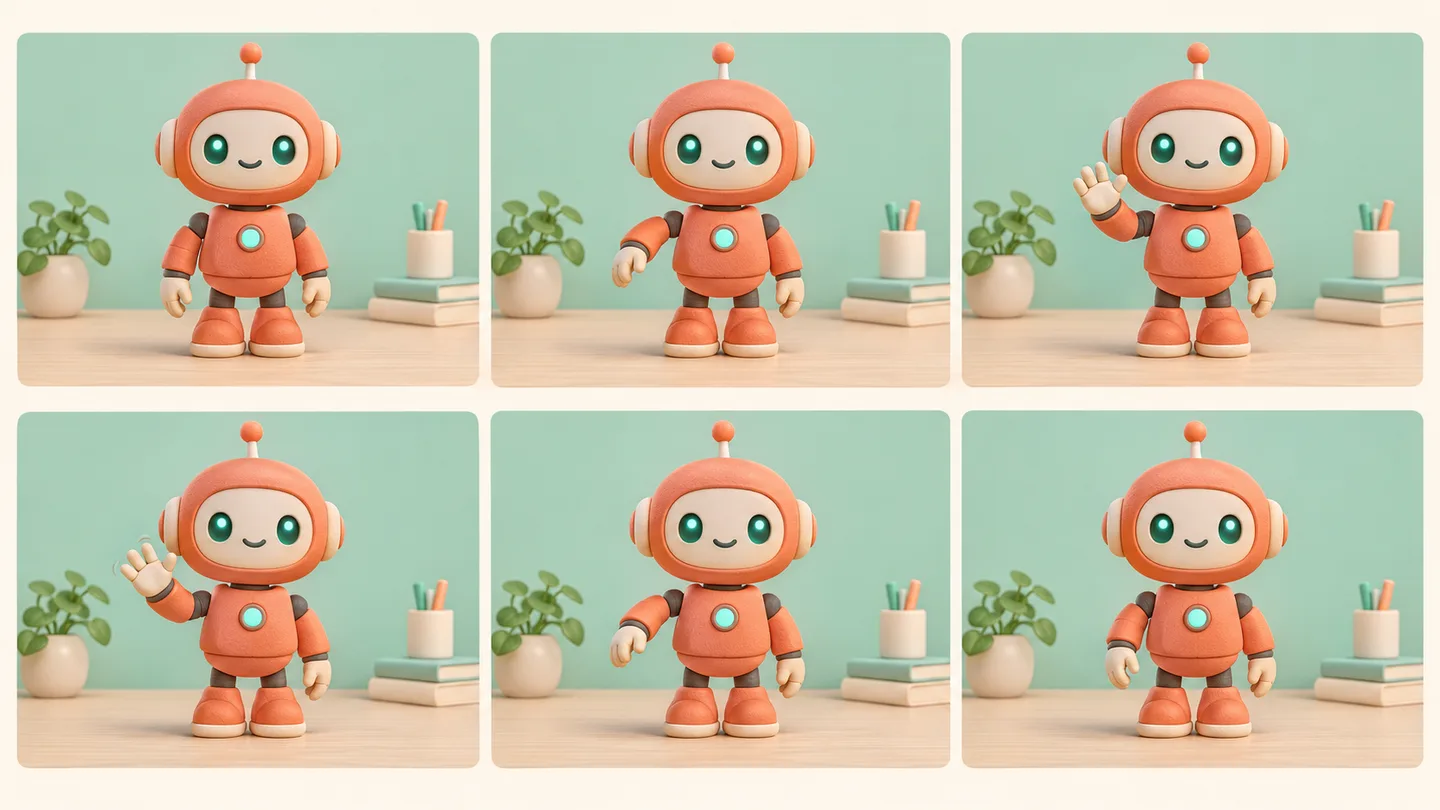
Original static storyboard illustrating a return-to-start action. It is not an API-generated GIF, a frame-by-frame specification, or evidence of model consistency.
Avoid adding a camera orbit, a changing background, and a second action to the same first test. Once a simple loop works, introduce one extra element at a time.
2. Describe the whole loop in the prompt
A useful animation prompt identifies the subject, motion, fixed elements, and transition back to the start. Here is an original brief for this tutorial:
Create a seamless looping animated GIF of a small coral-orange desktop robot with a round head and teal eyes. The robot stands centered on a pale desk against a plain mint background. It begins with both arms lowered, gently raises its right hand, makes one small friendly wave, then lowers the hand toward its starting position so the next cycle continues naturally. Keep the camera fixed, the robot’s size and face consistent, and the lighting and background unchanged. Use restrained movement and a soft clay illustration style. No cuts, zooms, text, logos, or extra characters.
The return instruction is more useful than adding “seamless” several times. It tells the model how the motion should resolve.
For a blinking character, replace the wave with a short blink and specify that the eyes reopen. For a swaying ornament, describe a small back-and-forth movement with a stationary attachment point. Keep the rest of the scene unchanged while testing the action.
When requesting direct GIF output, describe an animation. A prompt asking for a visible grid or contact sheet introduces a different visual requirement. The storyboard above is a planning aid, not the layout you want in the finished GIF.
3. Set the frame count and playback timing
The documented GIF route is POST /v1/images/generations with output_format set to gif. The image-edit endpoint does not support GIF output. The response contains the finished animation. OpenAI GIF output documentation.
| Setting | Documented values | Starting value in this example |
|---|---|---|
frame_count |
2–64; default 9 | 9 |
frame_duration_ms |
20–2000 ms, rounded to 10 ms; default 200 | 200 |
size |
auto, or supported dimensions in multiples of 16 |
auto |
Frame dimensions, frame count, and the number of animations must also fit the request’s pixel limits. Increasing every setting at once can make a previously valid request fail. Start with one animation and automatic sizing. Parameter reference in the guide.
For equal-duration frames, the planned duration of one cycle is:
Cycle duration in seconds = frame count × frame duration in milliseconds ÷ 1,000.
Nine frames at 200 milliseconds each give a planned cycle of 1.8 seconds. Twelve frames at 150 milliseconds also give 1.8 seconds, with more sampled poses over the same interval. These are timing calculations, not promises of visual smoothness.
Increasing frame duration slows playback without adding intermediate poses. If the motion jumps between poses, slowing those same frames may simply make the jumps easier to see. First simplify the action or compare a request with more frames at a similar total duration.
4. Send the request and save the GIF
You need API access to the selected model and an API key available in your local environment. Running this example makes a billable request. It uses Python’s standard library so it does not depend on a particular SDK exposing the newer GIF fields.
Save the following as generate_loop.py. Supply OPENAI_API_KEY through your environment; keep it out of the source file.
import base64
import json
import os
from pathlib import Path
from urllib.error import HTTPError
from urllib.request import Request, urlopen

prompt = """Create a seamless looping animated GIF of a small coral-orange
robot with teal eyes, centered on a pale desk against a plain mint background.
Start with both arms lowered. Gently raise its right hand, make one small
friendly wave, then lower it toward the starting pose so the next cycle flows
naturally. Fixed camera, consistent face and proportions, unchanged lighting
and background. Soft clay style. No cuts, zooms, text, or extra characters."""

payload = {
    "model": "gpt-image-2.6-flare",
    "prompt": prompt,
    "output_format": "gif",
    "frame_count": 9,
    "frame_duration_ms": 200,
    "size": "auto",
    "n": 1,
}

request = Request(
    "https://api.openai.com/v1/images/generations",
    data=json.dumps(payload).encode("utf-8"),
    headers={
        "Authorization": f"Bearer {os.environ['OPENAI_API_KEY']}",
        "Content-Type": "application/json",
    },
    method="POST",
)

try:
    with urlopen(request, timeout=300) as response:
        result = json.load(response)
except HTTPError as error:
    raise SystemExit(f"API error {error.code}: {error.read().decode()}")

encoded = result.get("data", [{}])[0].get("b64_json")
if not encoded:
    raise SystemExit("The response did not contain an image payload.")

animation = base64.b64decode(encoded, validate=True)
if animation[:6] not in (b"GIF87a", b"GIF89a"):
    raise SystemExit("The returned bytes do not have a GIF header.")

output = Path("robot-wave.gif")
with output.open("xb") as file:
    file.write(animation)
print(f"Saved {output.resolve()}")
Run it with python3 generate_loop.py. The script refuses to overwrite an existing robot-wave.gif; move the previous file or choose another output name before rerunning.
The model ID comes from the GPT Image 2.6 Flare model page. Decoding b64_json saves the returned animation bytes; renaming a PNG to .gif would not create an animation. Output handling documentation.
The example leaves quality and complexity unspecified to keep the first request focused on animation controls. When comparing later attempts, record those settings too rather than attributing every difference to frame count.
5. Watch the join, then inspect the rest
Open the saved file in a browser or image viewer that plays GIFs. Watch at least several cycles, paying particular attention to the instant playback returns to the beginning. Check the actual file’s repeat behavior as well as the visual transition.
Then inspect three areas:
- The subject: Does the face, silhouette, or hand shape change unexpectedly?
- The scene: Does the background move, flash, or change color while the camera is supposed to remain fixed?
- The timing: Is the action readable at its intended display size, without an awkward pause or sudden reset?
A quick glance at the first frame cannot answer these questions. Review at the size where the GIF will appear, then enlarge it to inspect distracting changes.
If the file does not repeat in your target app, inspect its loop metadata or the app’s playback behavior. Writing “seamless” in a prompt is not a substitute for checking the delivered file.
6. Fix the specific problem before increasing settings
| What you see | First change to try |
|---|---|
| The hand jumps back at the loop boundary | Shorten the gesture and describe its return path more clearly |
| The robot changes size or position | Reinforce fixed framing and simplify body movement |
| The background flickers | Remove moving props and complex lighting changes |
| The action is hard to read | Use a larger, simpler gesture or adjust the planned cycle duration |
| Motion is too abrupt between poses | Test more frames while keeping a similar total duration |
| The request exceeds size limits | Reduce frame count, dimensions, or the number of outputs |
Treat these as diagnostic suggestions, not guaranteed fixes. Keep the last useful version and change one variable per attempt. A different prompt and three different settings can produce a better result without teaching you which change mattered.
If an API request fails, inspect the returned error before trying again. A parameter problem needs a corrected request; repeating it unchanged adds no useful information.
Prepare the loop for its final placement
A finished animation still needs a destination check. Test the file in the website, messaging app, or campaign workflow where you plan to use it. Confirm that it animates, repeats as intended, stays readable, and meets that destination’s file-size limits.
Keep the original output alongside the prompt, model, frame settings, and any later export changes. That record makes the next revision easier to reproduce.
For your first loop, choose one subject, one small action, and a clear route back to the starting pose. Generate a modest first attempt, inspect the join, and make the next change based on what you actually see.
Prepared by Image26 Editorial. Documentation checked November 5, 2026. The storyboard is an original concept illustration. The API example has been checked for Python syntax but has not been executed against the live generation API; no generated GIF performance or seamlessness result is claimed.