

GPT Image 2.6 SVG Generation: Create Editable Icons and Illustrations
GPT Image 2.6 can generate SVG files through the Image API. That makes it worth exploring when your deliverable is an icon you need to recolor, a simple illustration you need to resize, or a graphic a designer will refine. The useful question is whether the resulting file is easy to work with—not just whether its preview looks good.
This guide explains the documented workflow and gives you original prompts and a practical acceptance checklist. It is not a hands-on performance review: we have not completed an SVG generation test for this article.
You can explore visual directions in the Image26 image workspace. Its current image workflow exports PNG; the SVG steps below use the OpenAI API and should not be read as instructions for an SVG download button on Image26.
What the SVG option produces
OpenAI documents SVG output for both GPT Image 2.6 Flare and Sunburst. The service first creates a reference image, then produces a static vector document. Its paths, shapes, and colors can be edited; scripts, external resources, and embedded raster images are excluded. The quality setting applies to the reference image. See the official SVG documentation.
Editable does not automatically mean convenient. For a handoff, you may want one selectable lampshade, a separate base, and a small palette. A file that takes many selections to recolor can still need substantial cleanup. Make editability part of your brief and inspect the result before accepting it.

Original generated concept illustration, supplied as a WebP. It illustrates editable components; it is not an SVG export or a model test result.
Choose a small deliverable first
Our suggested starting point is a single desk-lamp icon. It has a recognizable silhouette, a few parts, and clear checks. Once that works, expand to a matching set.
| Intended asset | Put in the brief | Acceptance check |
|---|---|---|
| Interface icon | Subject, target display size, palette, stroke style | Recognizable at its actual display size |
| Article illustration | Main objects, arrangement, background treatment | Main shapes remain easy to select and recolor |
| Brand concept | Symbol, mood, spacing, permitted colors | Useful starting point for a designer's refinement |
| Diagram artwork | Exact objects and relationships | Meaning remains clear without decorative additions |
These are proposed evaluation tasks, not measured strengths of either model. If your deliverable needs photographic texture, ask whether a raster image would serve it better. If it needs a precisely typeset wordmark, reserve time to finish the lettering separately.
Write a prompt around the edits you expect to make
A vague request for a beautiful vector leaves the practical requirements unstated. Describe the asset, its visual constraints, and what you need to modify afterward.
Try this original starting prompt:
Create a simple desk-lamp icon for a reading app. Show a side view with a round base, one angled arm, and a rounded shade. Use navy #17324D and coral #F07860 only. Use flat fills, generous negative space, and no text, gradients, shadows, or decorative objects. Keep the base, arm, and shade visually distinct so their colors can be changed separately. The silhouette should remain recognizable at 32 pixels.
The final sentence gives you a concrete inspection target. The separate-parts request gives you a second one. Neither is a guarantee; both help you decide whether to accept or revise the file.
For a larger editorial illustration, change the brief rather than simply asking for more detail:
Create a flat illustration of a reading corner: one chair, one standing lamp, and two books on a small side table. Use navy, coral, and warm cream. Keep the objects separate, with broad simple shapes and generous space between them. No words, textures, gradients, or tiny ornaments. Compose for a wide article header, leaving the left third mostly empty for a headline added later.
Avoid combining a full icon set, a complex scene, and a wordmark in your first request. A smaller brief makes failures easier to diagnose.
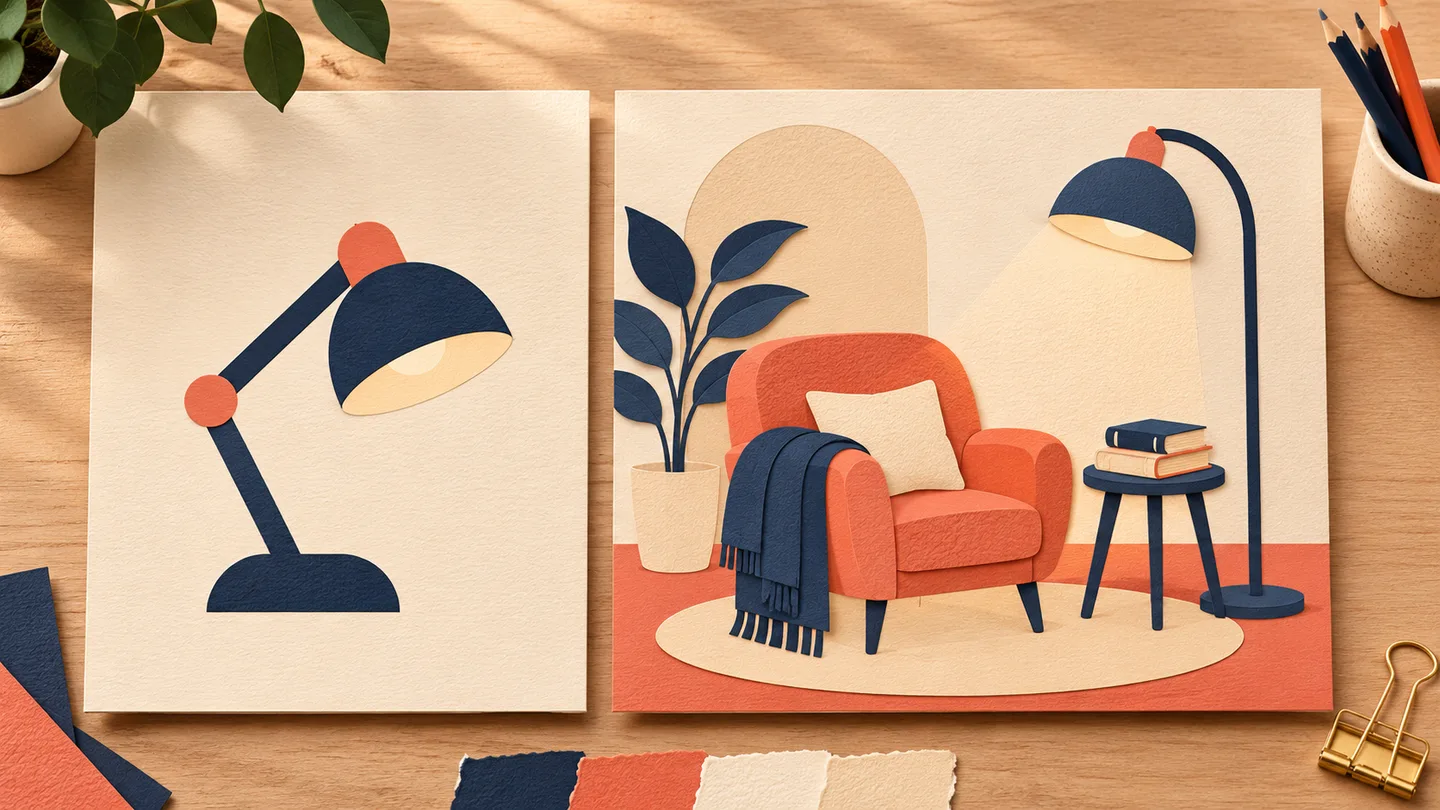
Generated concept illustration of two different design briefs, not outputs from the example prompts or an SVG model comparison.
Request an SVG through the API
Send a request to POST /v1/images/generations with an explicit model and SVG output. This minimal request body uses Flare; replace the model with gpt-image-2.6-sunburst to evaluate Sunburst on the same brief.
{
  "model": "gpt-image-2.6-flare",
  "prompt": "Create a simple desk-lamp icon for a reading app. Side view, round base, one angled arm, rounded shade. Navy #17324D and coral #F07860 only. Flat fills, no text, gradients, shadows, or decorative objects. Keep the base, arm, and shade visually distinct. Recognizable at 32 pixels.",
  "quality": "medium",
  "size": "1024x1024",
  "output_format": "svg",
  "n": 1
}
Use your normal authenticated API client and keep credentials outside the request body. Consult the image generation API reference for request and error handling. This example is documentation-based and has not been executed for this article.
Decode data[0].b64_json and save the resulting UTF-8 XML bytes with a .svg extension. Request one output. Streaming, partial images, compression, and prompt rewriting are unsupported for SVG. The image-edit endpoint cannot return SVG, and SVG files cannot be used as raster edit inputs. These restrictions are listed in the SVG guide.
If you need to move an existing path or change one fill, editing the downloaded vector directly is a more controlled next step than regenerating the whole composition.
Inspect the file before calling it finished
Open the result in your chosen vector editor and inspect it at both normal size and the smallest intended display size. Keep the unmodified original before making changes.
For the lamp example, use this short checklist:
- Silhouette: can you recognize the lamp at 32 pixels, without zooming?
- Color: can you change the shade from coral to navy without affecting unrelated parts?
- Geometry: do the arm, shade, and base meet cleanly? Look for slivers, gaps, and accidental overlaps.
- Composition: is there enough space around the asset, and is anything clipped?
- Handoff: can another person identify the main parts and make the expected edits without rebuilding them?
Record each check as pass, revise, or reject. This is more useful than giving a visually appealing preview a general quality score. For a set of icons, compare stroke weight, visual size, and spacing across the entire set before exporting.
When a result misses the brief, name the failure: “remove the extra decorative rays,” “make the base wider,” or “use only the two specified colors.” Change one requirement at a time so you can tell whether the revision helped.
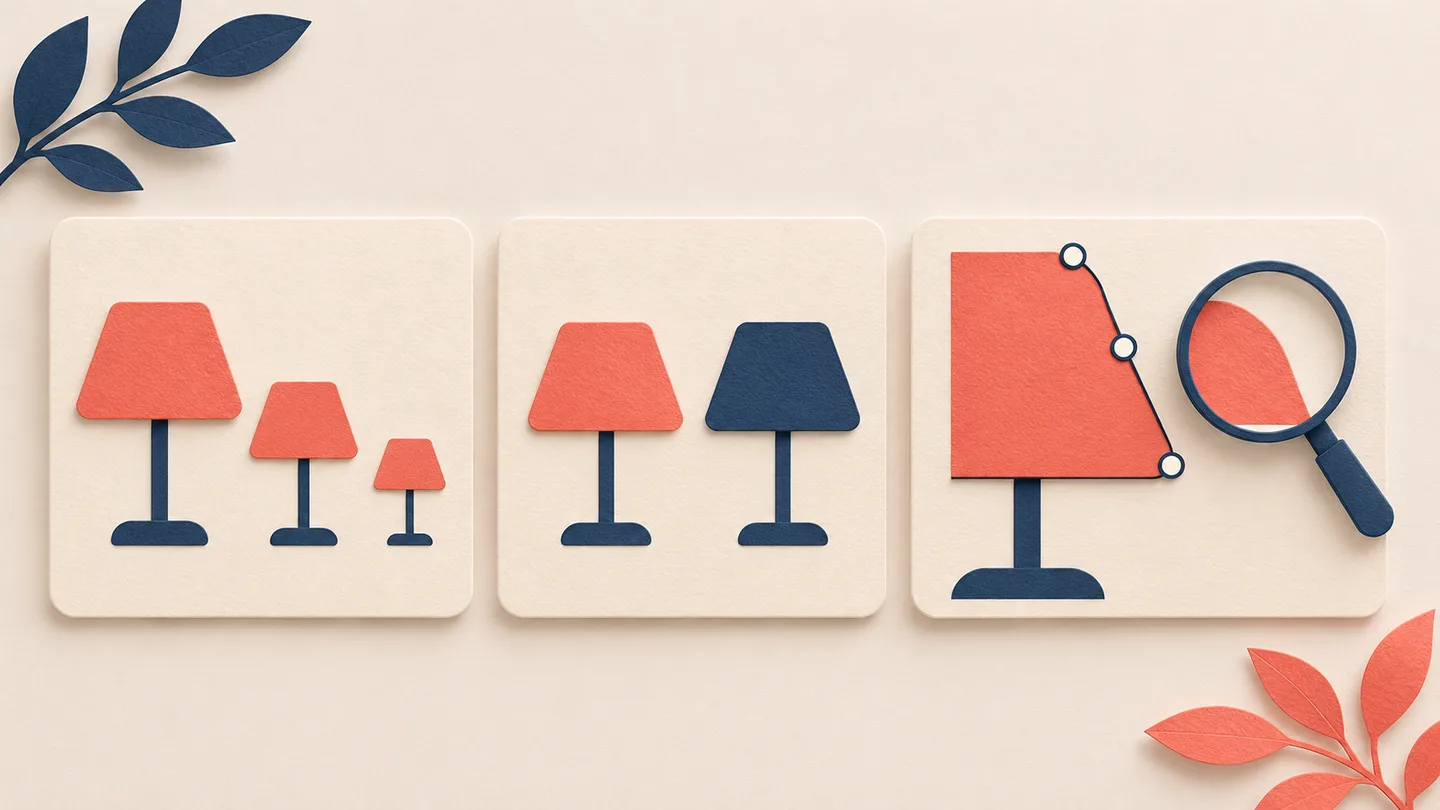
Generated editorial illustration of inspection criteria. These are conceptual examples, not measured SVG results.
Budget for both stages
SVG pricing includes the reference-image generation and the authoring model's token usage. An image-only estimate therefore does not describe the whole SVG job. OpenAI explains this in its cost documentation.
For your own trial, record the billed amount for every attempt and the number of usable assets. Divide total spend by accepted assets, then separately record cleanup time. Do not count an attractive preview as accepted if the file still needs to be rebuilt.
For example, a hypothetical trial costing $3 that delivers six usable icons has a generation cost of $0.50 per accepted icon. This is arithmetic, not a quoted model price or an observed result. If none pass inspection, report zero accepted assets rather than calculating a cost per success.
Pick the model, then finish the asset
OpenAI positions Flare for fast iteration and Sunburst for detailed work. Those descriptions can guide the order of your trials, but they do not establish which will produce the cleanest paths for your particular icon. See our Flare vs Sunburst guide for the broader choice.
Start with one useful asset, one fixed prompt, and explicit acceptance conditions. Inspect its appearance and its editability, then refine the vector before extending the style to a larger set. If your deliverable needs motion instead, our GPT Image 2.6 GIF guide covers a different output workflow.
Documentation checked November 6, 2026. Written by Image26 Editorial. No SVG performance, timing, or cost benchmark is claimed.