

GPT Image 2.6 Text in Images: A Proofreading Workflow
For GPT Image 2.6 text in images, prepare the exact copy before generating, describe where each line belongs, and proofread the downloaded result against that copy. A convincing poster can still contain a wrong date, a missing accent, or an extra letter. Check the message separately from the artwork.
You can create a new visual or revise an existing design in the Image26 image workspace. This guide follows a fictional coffee event poster from its approved wording to a final review. It provides a production checklist and original prompt examples, rather than a text accuracy benchmark.
Decide which words should be part of the image
A short headline integrated into an illustration can be worth exploring through generation. A price list, address, legal line, or frequently changing offer is usually easier to maintain as editable text in your design application. Decide this before spending credits on variations.
| What you need | A useful starting approach | What to inspect |
|---|---|---|
| A short decorative headline | Request the exact words within the image | Every character, spacing, and contrast |
| An existing poster with one wrong line | Upload the poster and request only that replacement | The replacement and all retained copy |
| Several languages on one asset | Approve each translation first and assign separate text areas | Accents, script, reading order, and line breaks |
| A changing price or event schedule | Generate artwork with reserved space; add editable copy afterward | The final exported layout and current information |
OpenAI's image generation guide notes that GPT Image models can still struggle with precise text placement and clarity. That is a general limitation to account for, not evidence that a particular version will make a particular mistake. Judge the file you actually plan to publish.
Make a small copy sheet before the prompt
For our fictional poster, the approved copy is:
Headline: COFFEE NIGHT
Day: FRIDAY
Time: 18:30
Keep this sheet outside the generated image. It gives you a reference that does not depend on remembering what you asked for. For a real event, verify the date, time zone, location, booking link, and offer with the person responsible for the event before starting.
Record capitalization and punctuation as part of the copy. If your approved phrase contains an accented letter, paste that exact character. If a line must break after a particular word, specify the intended break. Avoid asking the model to invent additional offers or translate approved marketing copy while also designing the artwork.
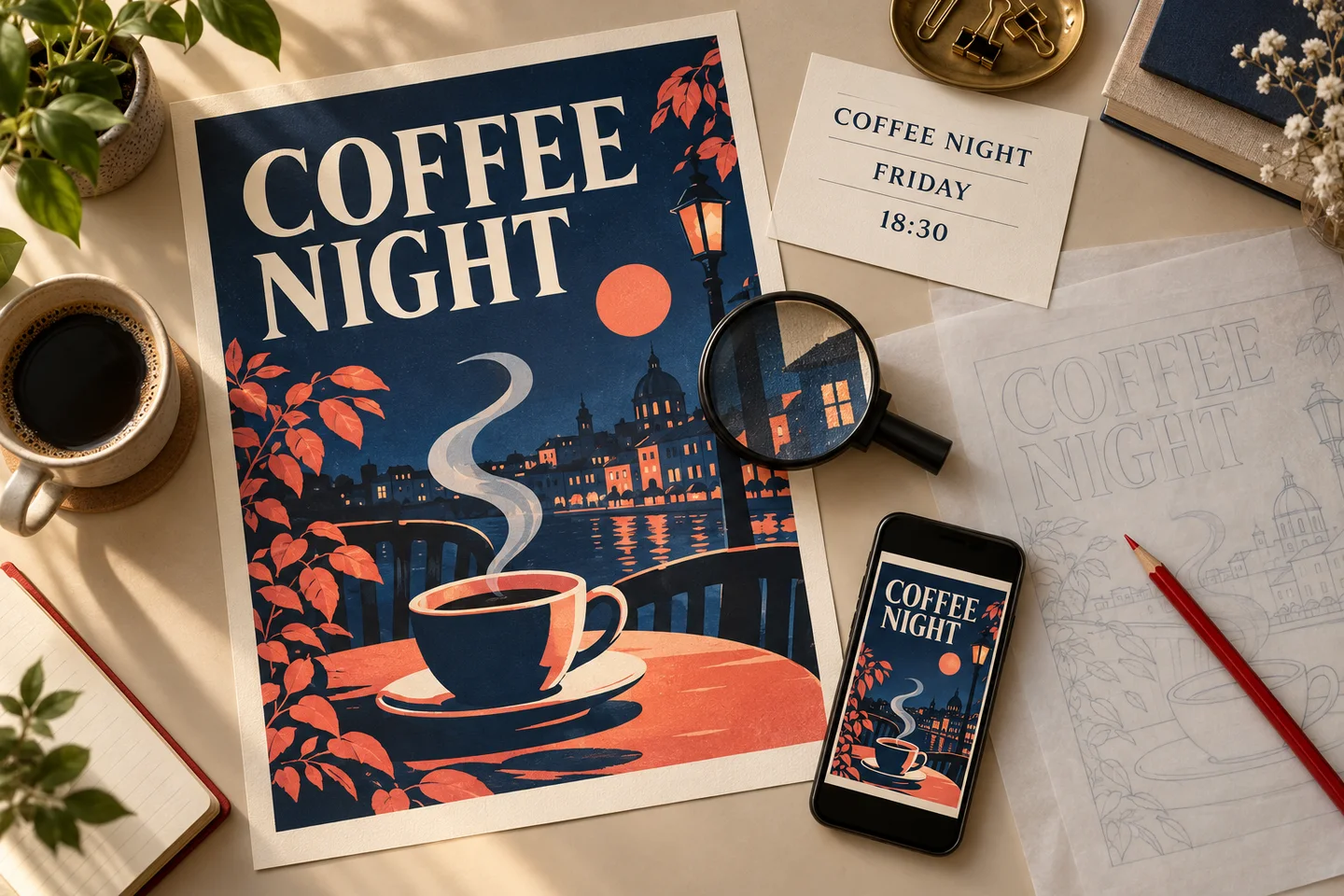
Concept illustration generated for this guide. It shows a proofreading setup, not a GPT Image 2.6 test result or an Image26 interface screenshot.
Give the words and the layout different jobs
A useful prompt distinguishes content from appearance. Quotation marks identify the literal words. The layout instructions explain their hierarchy and location.
Try this original brief in Text-to-Image:
Create a vertical coffee event poster with a warm cream background, a navy coffee cup illustration in the lower half, and a restrained coral accent. Use only these three text lines: headline "COFFEE NIGHT" near the top, "FRIDAY" below it, and "18:30" below the day. Keep generous space around each line, strong contrast, and simple upright lettering. Keep the cup separate from the words. Do not add a venue, slogan, price, or other text.
Replace the copy and visual direction with your own. The instruction to use only three lines makes unrequested text easier to spot; it does not guarantee a correct render. If the poster needs a long paragraph, generate the artwork with an empty text area and set that paragraph in your design application.
Choose an aspect ratio that matches the intended placement. Review the settings and displayed credit requirement before submitting. Start with one version so you can evaluate the brief before producing more variations. A completed version still uses credits if you decide to try again; review the site's plans and credit options when budgeting for revisions.
Proofread the file in three passes
Download the candidate and compare it with your copy sheet. Do not judge lettering only from a small result thumbnail.
- Content: Read each character against the approved text. Check repeated letters, numbers, punctuation, accents, and unintended extra words. Verify time and price separately from the headline.
- Layout: Check line breaks, clipping, spacing, contrast, and whether decorative elements cross the words. Look at the actual crop intended for publication.
- Delivery: View the file at its final display size. A line that looks clear while zoomed in may become unreadable in a small feed card. Recheck after resizing or compression.
For multilingual work, ask a fluent reader to review the final image, even when the original translation was approved. The translation and the rendered characters are separate things to check. Automated text recognition can be an additional aid, but it should not replace reviewing the final visual.
Correct one line without redesigning the poster
If the composition works and only the time is wrong, use Image-to-Image with the original poster and a focused instruction:
Replace only the time line beneath "FRIDAY" with the exact text "18:30". Keep the headline "COFFEE NIGHT", the word "FRIDAY", the coffee illustration, the cream background, and the existing crop. Match the time line's current position and visual weight. Add no other words.
After editing, check all three lines again, including the lines you asked to preserve. An editing request can affect nearby details. If you need help identifying an edit area, see the visual editing and selection guide; the proofreading process here is still required afterward.
| Problem in the result | What to change next |
|---|---|
| A word has a missing or repeated character | Restate that exact line and request a focused replacement |
| The spelling is right but the line is unreadable | Simplify the lettering and background, or increase the available space |
| One language is correct and another is damaged | Review and correct each text area separately with a fluent reader |
| Fixing the time also changes the headline | Return to the saved original; consider replacing the time as an editable layer |
| Many small lines keep failing review | Keep the artwork and typeset the copy separately |
Use a stopping rule: when a focused correction repeatedly changes approved content, move the remaining text work to a layer-based design tool. Repeating a broad generation request is not a reliable substitute for exact typesetting.
Export an asset that can be checked again
Keep the approved copy sheet, the original artwork, and the final export. If you finish lettering in another application, retain its editable source file as well. On the exported asset, verify the current offer, all contact details, the intended crop, and the smallest important line.
For your next design, open the image workspace with a short approved copy sheet and one clear layout idea. Make the first version easy to inspect, then decide whether the remaining correction belongs in another generation or an editable text layer.
Workflow and product controls checked on October 31, 2026 against the live Image26 homepage, its product guide, and the OpenAI documentation linked above. No comparative text-rendering test was performed.