

GPT Image 2.6 Visual Editing: Markup, Selections, and Prompts
A useful GPT Image 2.6 editing request answers three questions: where should the change happen, what should change, and which details should remain consistent? A selection or annotation helps communicate the first part. Your written prompt supplies the other two. Always compare the finished image with the original, including areas outside the requested edit.
On image26.com's image workspace, you can start with a reference image and describe a change. This guide uses a simple example: changing the body color of a ceramic mug while preserving its handle, shape, and placement. The workflow is a suggested way to prepare and inspect a request, not a measured guarantee of editing accuracy.
What markup means, and which input you actually need
In OpenAI's image-edit API reference, markup is a transparent PNG overlay applied to the first input image. The documentation says it must match that image's dimensions after orientation, contain transparent pixels, and be sent without a mask parameter in the same request. The field description mentions GPT Image 2.5 and 2.6.
Those are requirements for that API field. They do not describe every image editor's upload controls. In image26.com's selection-assisted workflow, you select an area in the editor and apply the selection. You do not need to prepare an API markup file to follow the workflow below.
Use the input that matches your task:
| Your situation | What to prepare | What to explain in words |
|---|---|---|
| You want a new scene | A written scene brief; use Text-to-Image | Subject, composition, lighting, and style |
| You want to revise an existing image | The original reference; use Image-to-Image | The change and the important details to retain |
| The change concerns one part of the reference | The reference and an area selection, when available | What should happen inside that area and what should stay consistent |
You are building an API request with markup |
A compatible transparent PNG overlay | The intended edit; validate against the API documentation |
For an ordinary browser editing task, begin with the second or third row. A more elaborate input is useful only if it communicates something your request was missing.
Write the change as a three-part brief
Suppose your source photograph shows a white ceramic mug on a wooden table. You want the mug's body to become forest green, but the handle should stay white.
Separate the instructions before combining them:
- Target: the exterior body of the mug, excluding its handle and the inside of the rim.
- Change: a forest-green ceramic glaze, with the existing surface highlights still visible.
- Preserve: the white handle, rim shape, mug proportions, table texture, shadow direction, and framing.
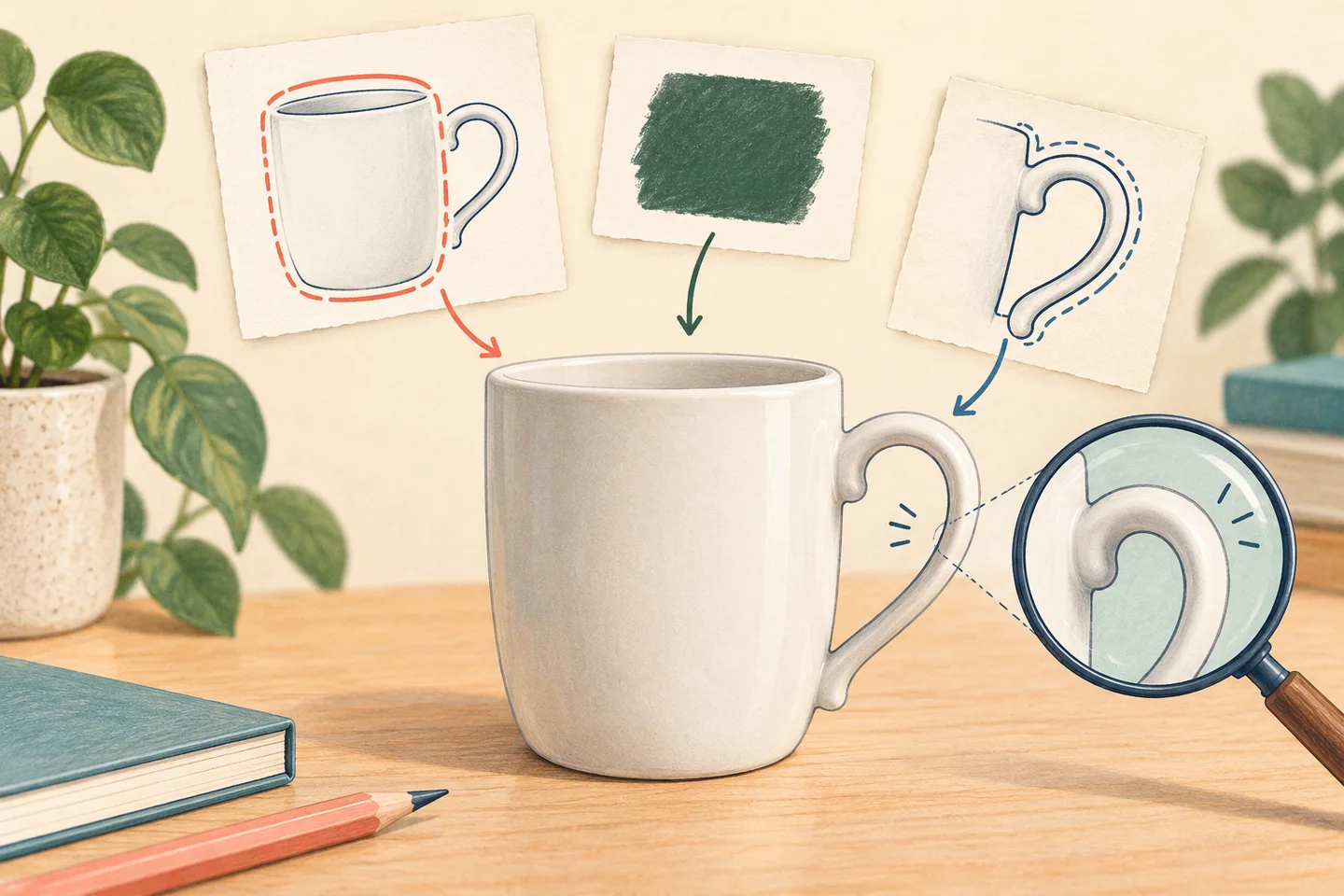
Generated concept illustration of an editing brief. It is not an image26 interface screenshot, a model benchmark, or a before-and-after result.
Try this original prompt with your own reference:
Change the exterior body of the mug to a forest-green ceramic glaze. Keep the handle white and keep the inside of the rim unchanged. Preserve the mug's proportions, curved handle, camera angle, wooden table, and shadow direction. Retain natural highlights on the glaze. Add no text or decorative pattern.
Replace the object, color, and preservation details to match your photograph. Do not ask for a new background, a different camera angle, and a product redesign in the same first attempt if your immediate task is a color change. A focused request makes it easier to identify which part succeeded.
Apply a selection that agrees with the prompt
Open the image editing workspace, sign in, and choose Image-to-Image. Upload a clear source file and keep an untouched copy elsewhere.
The selection controls in the current project use Select edit area to open Selection-assisted editing. When these controls are available in your editor, choose Box, Ellipse, or Lasso, mark the intended region, and select Apply and return. Availability and labels can change with the deployed interface; the written reference-image brief remains usable if those controls are absent.
A box is convenient for a rectangular sign. An ellipse can suit a rounded object. A lasso lets you follow an irregular outline. For the mug example, a lasso around the body can help exclude the handle. Treat the selection as guidance: it does not establish a hard boundary that guarantees unchanged pixels elsewhere.
Before submitting, compare the selection with the words. If the selected area includes the handle while the prompt says to preserve it, adjust the selection. If the request refers to “the left object,” make sure the reference has an unambiguous left object. A clear target removes a source of confusion before you spend credits.
The current selection workflow also uses reference capacity for selection maps. If a reference-limit message appears, remove an unnecessary reference or clear a selection. Use the limit displayed for your selected option rather than assuming all options accept the same number of images.
Choose settings around the deliverable
Keep the output aspect ratio close to the intended placement. A square product tile and a tall mobile graphic have different framing needs. If preserving the original composition is important, avoid requesting a substantially different crop without explaining it.
Start with one result when you are still checking the brief. Review the displayed resolution, batch quantity, and credit requirement before submitting. Pricing and credit options help you choose a balance for your project; the editor shows the cost of the actual request.
A new completed variation can spend additional credits even when you dislike the previous result. Decide what you will change in the request before generating another version.
Review the requested change and the preserved details separately
First check the edit itself: is the mug body the intended color, and does the material still look like glazed ceramic? Then check the preservation list. Look at the handle curve, rim, object width, contact shadow, table grain, and crop.
Inspect the downloaded file at full size, then at the size where it will appear. A small thumbnail may hide an altered edge or damaged lettering. For a real product, compare details against the source photograph rather than a memory of the product.
| What you notice | What to check before another attempt |
|---|---|
| The wrong object changed | Name the object and location explicitly; check the selection |
| The handle changed with the body | Exclude it from the selection and state its original color and shape |
| The color is right but the material looks plastic | Describe the intended surface and which highlights to retain |
| The background or crop drifted | Return to the original reference and simplify the edit request |
| Letters or a label became inaccurate | Inspect exact wording; consider finishing critical text as an editable layer in your design tool |
| A reference-limit error appears | Reduce reference inputs or clear selections according to the displayed limit |
These are diagnostic next steps, not promises that a second attempt will fix the problem. If repeated generations change details that must stay exact, use a conventional layer-based editor for that final correction.
For your next edit, bring one clear reference, write one specific change, and list the details you will check afterward. That gives you a useful standard for deciding whether the result is ready to download and use.
Product descriptions and API input requirements checked on October 30, 2026 against the Image26 product guide, the live homepage, current project controls, and the API reference linked above. This guide does not report a generation benchmark.